# Creating Ads with Dynamic Content Using a CSV File

## **Overview**

This guide explains how to set up dynamic ads using a CSV file to populate variables such as text, URLs, and images. The walkthrough uses the fictional car brand **Lucia** as an example, but the process can be adapted to suit your needs.

Dynamic content enables you to create a single ad design and customize it for different locations, campaigns, or audiences by swapping out data from a CSV file. This is especially helpful for large-scale campaigns requiring multiple variations of the same ad.

### **What This Guide Covers**

1. Configuring your creative for dynamic content.
2. Preparing your CSV file and uploading it to the platform.
3. Reviewing and approving variants.
4. Exporting finalized ads.

***

### **Understanding the Workflow**

Here’s a simplified overview of the process:

1. **Design & Setup**:
   * Create your ad in the editor and mark placeholders for dynamic fields.
   * Assign data variants to fields such as text, phone numbers, URLs, or images.
2. **Prepare Your Data**:
   * Download a CSV template to organize your data.
   * Populate the template with your campaign details (e.g., dealer names, phone numbers, etc.).
3. **Map, Review, and Approve**:
   * Upload the CSV, map columns to the placeholders, and preview each variant.
   * Adjust any design or data errors as needed.
4. **Export Ads**:
   * Finalize and export variants.

***

## **Step-by-Step Guide**

### **Step 1: Configure Your Creative**

1. **Design Your Creative**

   * Begin by creating your ad in the **Editor**. Use the tools available to design a visually appealing ad, ensuring that the layout works across all required sizes.
   * Identify areas where dynamic content is needed, such as:
     * **Text Fields** (e.g., dealership names, slogans).
     * **Contact Information** (e.g., phone numbers, URLs).
     * **Images** (e.g., logos or location-specific graphics).

<figure><img src="/files/ZI5dT32QM2t4WLiiWUg9" alt=""><figcaption><p>Examples of dynamic content in the editor</p></figcaption></figure>

2. **Assign Data Variants**

* Select each placeholder in the creative (e.g., text or image).
* In the **Data Source Settings** section of the editor, assign a name for the data field.
  * Example: For the dealer name, assign the field name `Name`.
* Repeat this for all dynamic elements, including URLs and other fields.
* Save your work.

{% embed url="<https://www.loom.com/share/d4edf4c9bae44cb6beefbba5a8d93f73>" %}
Watch the Video on how to Assign a Data Source&#x20;
{% endembed %}

***

### **Step 2: Prepare and Upload Your Data**

1. **Download the CSV Template**
   * Navigate to the **Summary Page** in the platform.
   * Locate the **Details** section and then the **Data Feed** sub-section and download the CSV template.
     * The template will include headers that match the data variant names you assigned earlier.

<figure><img src="/files/8suO00WgSOXsYQhEaBfQ" alt=""><figcaption><p><strong>Data Feed</strong> section and the "Download Template" button.</p></figcaption></figure>

2. **Populate the Template**

* Open the CSV template in Excel or another spreadsheet editor.

* Fill in the columns with your campaign data:

  * **Variant Name**: A unique identifier for each variation (e.g., dealership name).
  * **URL**: The click-through link.
  * **Name**: The name of the dealership.
  * **Phone**: The contact number.

* Example:

  | Variant Name   | URL                          | Name           | Phone        |
  | -------------- | ---------------------------- | -------------- | ------------ |
  | Lucia Downtown | <https://lucia.com/downtown> | Lucia Downtown | 123-456-7890 |
  | Lucia West End | <https://lucia.com/westend>  | Lucia West End | 987-654-3210 |

* Save the file as a CSV.

<figure><img src="/files/jPJPjFrubn6hyrWtDWu2" alt=""><figcaption><p>How this CSV would look in Google Sheets</p></figcaption></figure>

3. **Upload the CSV**

* Return to the platform and upload the completed CSV.
* Ensure that the upload confirmation displays the correct number of variants.

<figure><img src="/files/qJ65wEvD8rfhzK2JVuaW" alt=""><figcaption><p>Use this button in the Data Feed section to upload your completed CSV</p></figcaption></figure>

***

### **Step 3: Map, Review, and Approve Variants**

1. **Map Data Columns**
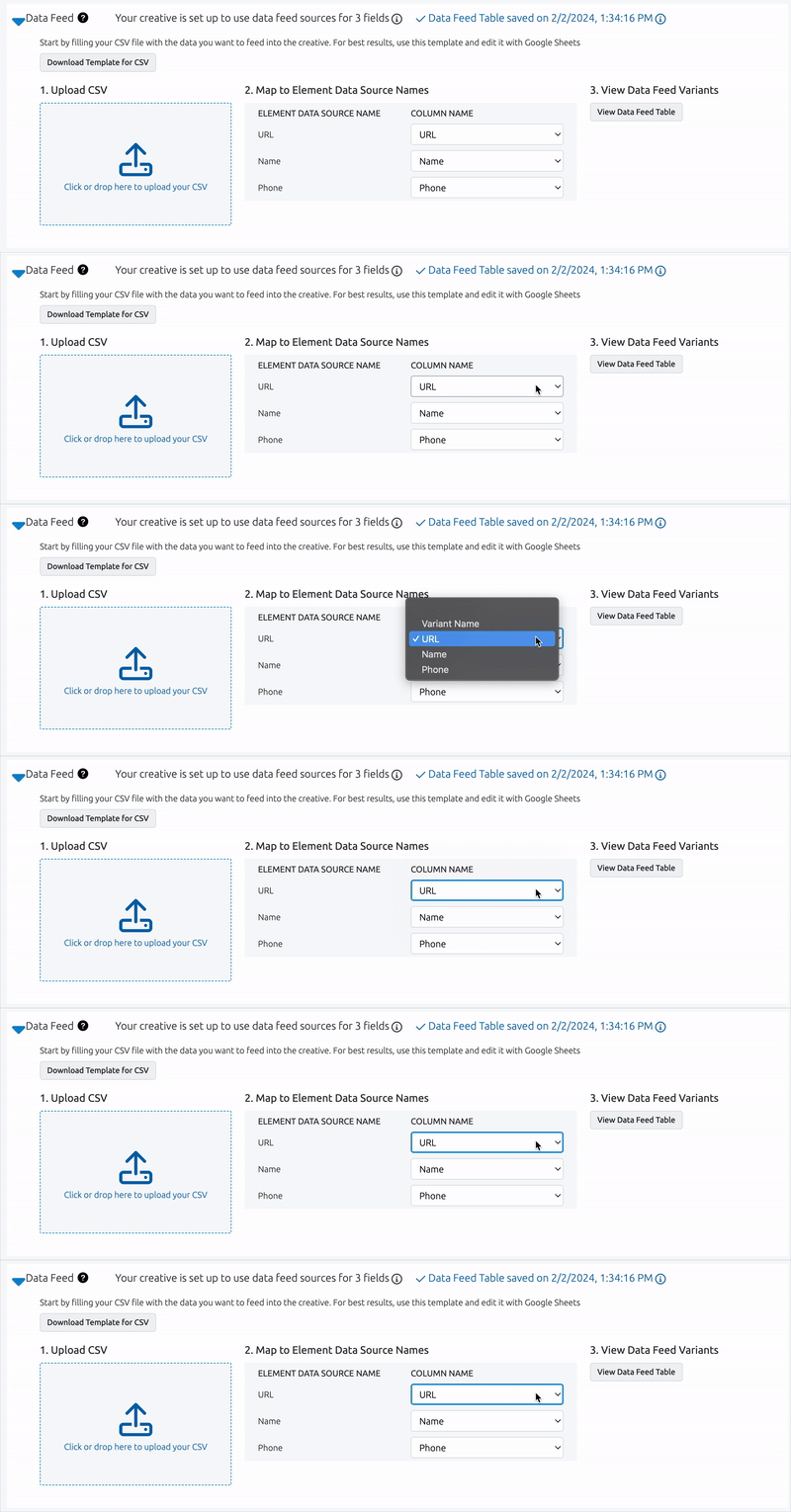
   * Verify that each CSV column is correctly mapped to the corresponding placeholder in the creative. Do this by using the drop-downs in the 'Map to Element Data Source Names' section.
   * Check the Data is correct by using the 'View Data Feed Table' in the 3rd section.
   * Adjust any mismatched mappings manually.

<figure><img src="/files/oqZCJJ2IoWPDLrc4nC34" alt=""><figcaption><p>Mapping CSV Columns to Creative</p></figcaption></figure>

2. **Preview Ad Variants**

* Generate and preview ad variants for all sizes and data sets. To do this, navigate to the preview page for the creative. When on the preview page, use the 'Preview Data Variants' button to view a drop down of all your variants.&#x20;
* Review each variant to ensure the data is displayed correctly and the design works well across all sizes.

<figure><img src="/files/0jpTI1X87rV9V2CDki2L" alt=""><figcaption><p>Data Variant Preview on the Preview Page</p></figcaption></figure>

3. **Share for Approval**

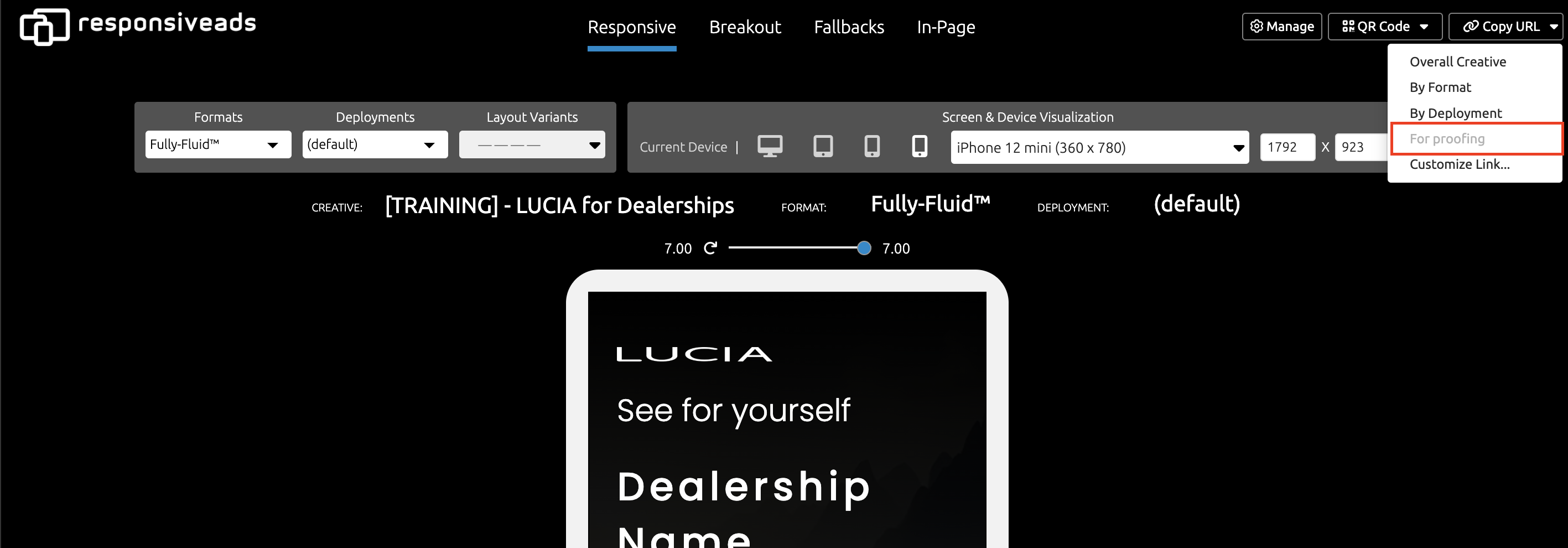
* You can use the platform to generate shareable preview links.
* Send these links to stakeholders for approval and [comments](/collaboration/comments.md).
* Stakeholders can also use the Variant Preview to view different versions of the creative.

<figure><img src="/files/FABclfpQyHETdZ16e4K7" alt=""><figcaption><p>Use the 'For Proofing' link in the 'Copy URL' menu to create a shareable proofing link</p></figcaption></figure>

***

### **Step 4: Export/Deploy Final Ads**

1. **Navigate to the Summary Page and choose export type for your Ad:**
   1. [Image](/deploying-ads/image-exports.md)
   2. [HTML5 Zip](/deploying-ads/html5-export.md)
   3. [Video](/deploying-ads/video-animated-gifs.md) (in Beta)
   4. [Ad Tags](/deploying-ads/ad-serving-tags.md)&#x20;
2. Export or Deploy Approved Variants:
   1. **Export Approved Variants**
      * Select the approved variants you wish to export. (See Gif below for example)
        * Specify the desired ad sizes and formats (e.g., IAB standard sizes).
        * Export the ads in your chosen export type.
   2. **Deploy Approved Variants**
      * Publish and download the Ad Tags for the approved deployments.

<figure><img src="/files/KohuU5kbaYBjxLP9nIvR" alt=""><figcaption><p>Variant selection for HTML5 Exports</p></figcaption></figure>

***

## **Tips for a Smooth Workflow**

* **Double-Check Data**: Ensure your CSV file is accurate and properly formatted before uploading.
* **Plan Your Variants**: Use meaningful names for each variant to make it easy to identify them later.
* **Preview Thoroughly**: Always review each ad size and data combination before sharing or exporting.
* **Communicate with Stakeholders**: Share preview links early to gather feedback and approvals quickly.


---

# Agent Instructions: Querying This Documentation

If you need additional information that is not directly available in this page, you can query the documentation dynamically by asking a question.

Perform an HTTP GET request on the current page URL with the `ask` query parameter:

```
GET https://docs.responsiveads.com/creating-ads/variants/creating-ads-with-dynamic-content-using-a-csv-file.md?ask=<question>
```

The question should be specific, self-contained, and written in natural language.
The response will contain a direct answer to the question and relevant excerpts and sources from the documentation.

Use this mechanism when the answer is not explicitly present in the current page, you need clarification or additional context, or you want to retrieve related documentation sections.