> For the complete documentation index, see [llms.txt](https://docs.responsiveads.com/llms.txt). Markdown versions of documentation pages are available by appending `.md` to page URLs; this page is available as [Markdown](https://docs.responsiveads.com/migrating-from-studio-3-to-studio-4/studio-4-editor-whats-new-and-improved.md).
# Studio 4 Editor: What's New and Improved
Welcome to the updated Studio 4 Editor! Transitioning from Studio 3 is fast and easy. Not only does Studio 4 feel familiar—it also looks better and functions more like the design tools you're used to. This page will help you transition quickly and smoothly.
***
## Why Switch to Studio 4?
#### A More Modern UI
* Clean, intuitive design similar to modern software tools
* No more hidden features or confusing panels
* Logical placement of controls and better visual feedback
#### Smarter, Simpler Workflows
* View settings for individual sizes or all sizes clearly
* Simultaneous view of the **Element List** and selected **Element Settings**
* Settings are better organized, with commonly used ones shown at the top
* Immediate feedback in the UI (no more “just in case” clicks)
#### Better Insight and Control
* See the **creative weight** broken down by element
* Image renditions are easier to view and manage
* Add creative-wide borders and adjust **element opacity**
#### Other Improvements
* Color picker with "eyedropper" tool
* Set text **truncation** and **case** styles
* Quick setup for image button hover states
* Easier video and image management (bulk renditions, previews)
* Improvements for showing your ad on the canvas (repositioning, zoom tools, showing what is selected)
{% hint style="info" %}
Access Beta features like **stacked layout for groups** and **adding article elements**. [Get in contact with support](mailto:support@responsiveads.com) to find out how.
{% endhint %}
***
## Layout Changes: What’s Moved?
### Left Panel
Most tools from the old right panel are now on the **left**:
* **Layouts, Formats, Elements List** remain familiar
### Top Bar
The tools on the top bar affect the whole creative, or change your canvas view settings
* **Left:** Developer console, improved [PSD Upload tools](/creating-ads/setting-up-ads/using-psd-files-with-responsive-ads/how-to-upload-your-psd-file-into-responsiveads.md), copy layout and copy all styles.
* **Center:** Zoom, Undo, Redo, Local History
* **Right:** Device simulator (used to be on the left)
### Right Panel: Now Split in Two Tabs
* **Design tab** = Size-specific controls (appearance, layout, style)
* **Setup tab** = All-size controls (triggers, data, global behaviors)
> 🛠️ When no element is selected:
>
> * Design tab: Creative-level settings for the design of the active size (e.g. size K-weight)
> * Setup tab: Global settings for your creative (bulk image renditions, deployment settings, creative notes)\
> 
> 🎯 When an element is selected:
>
> * Design tab: Visual or design related size-specific element settings
> * Setup tab: Global element properties and triggers\
### Design Tab
The design tools for Guidelines and aligning elements with eachother or the creative border are always on the top of the Design tab
The rest of the design tab looks different based on what you have selected.
**Creative level settings**
1. Weight
1. Billing category for the current size
2. Details on the weight of the size
2. Elements
1. Open the section to see the image elements and their k-weight in this size
2. Once you have renditions set up, you can use the blue link to access the renditions selected for that image to change the weight of this size
3. Border
1. Use this to replace individual border elements on your creative
2. The default setting is "None"
3. The creative border is applied to ALL sizes for convenience, but it is on the Design Panel for the creative settings to make it easier to find
**Element specific settings**
Every element has the sections for element (ID + visibility), position and size. What else is shown depends on the element selected, but you will have access to change design values for colors, paddings, fonts used, etc.
Usually, what you find in the design tab used to be on the top bar when an element was selected
Opacity is now always available for every element.
An important setting to find for Group elements is the "Overflow" setting in the Size section. Use this to set the group to hide (crop) any contents beyond its borders, or to set up scrolling for the group.
### Animation On/Off button is replaced with "Animation mode"
We've rebuilt our Animation Timeline completely, and we have removed the control for turning animation on and off.
When you are using the editor, by default all changes will be applied to your design layout. When you wish to edit your animation, open the Animation Timeline.
* When the Animation Timeline panel is open, you are in "Animation mode", and can *only* edit animation.
Close the Animation Timeline panel to edit your design layout or settings.
Regardless of whether the panel is open or closed, **any added animation will be saved** to your creative, and will be shown as defined in your settings.
In Animation mode, you can see in the Format pane which sizes are animated.
#### The Animation Bottom Bar
* No animation saved in your creative - the Animation bar at the bottom is empty
* Animation is saved in your creative - the Animation bar shows the available animations
* "Animation mode" on - you can only edit animations while the pane is up and the bottom bar displays as active like this
***
## New Animation Timeline
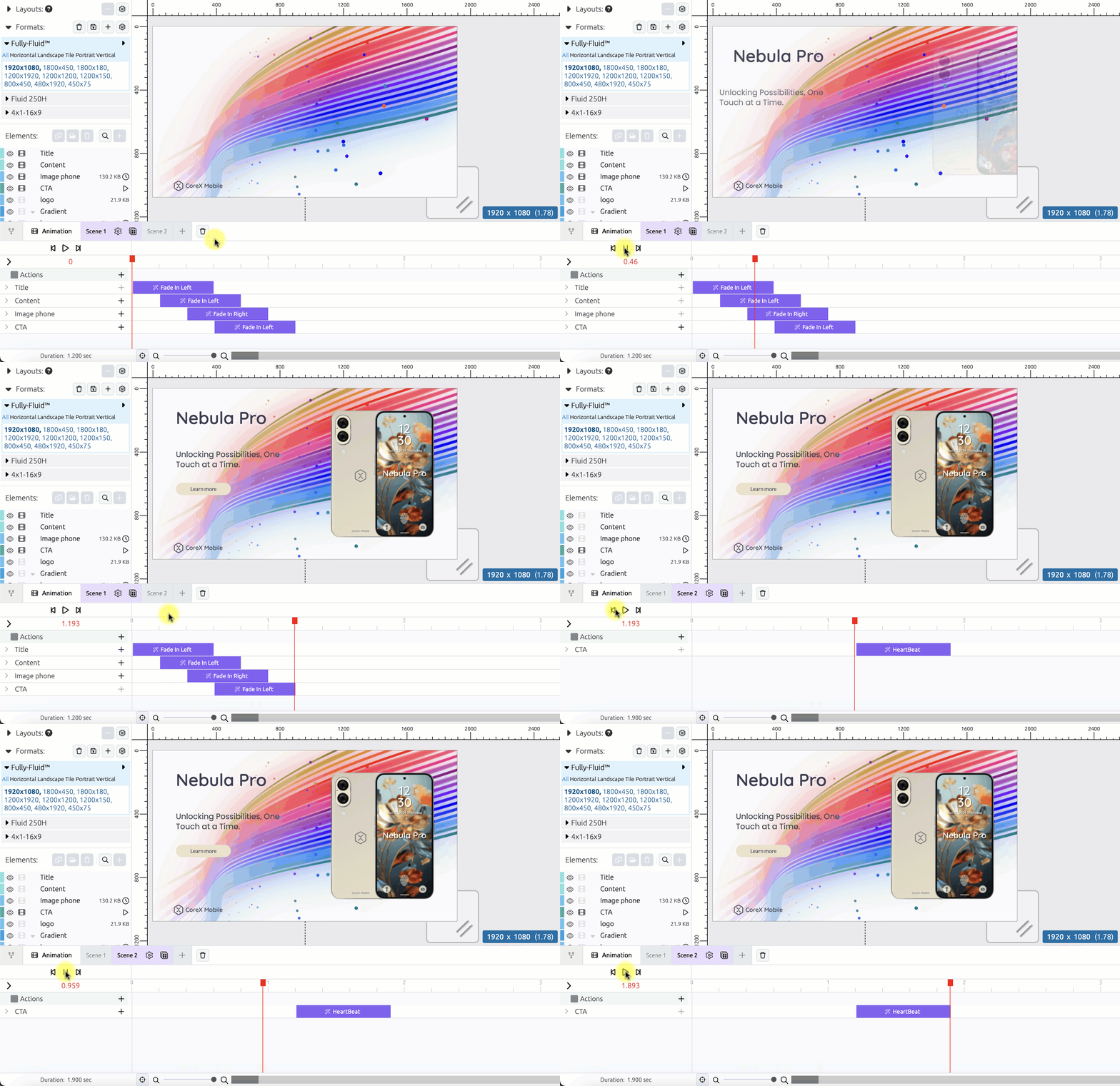
We've built an all new animation timeline with a simpler to use interface and more features.
Create complex animations with ease using pre-made animations and understand your existing animations at a glance.
Learn about animating with blocks in [Animation Timeline](/creating-ads/designing-your-ad-in-the-fluid-ad-creator/animation-timeline.md)
We have a complete section on migrating existing animations to blocks, which also gives a more in-depth look at the difference between keyframes and blocks: [Migration: Keyframes to Animation Blocks](/creating-ads/designing-your-ad-in-the-fluid-ad-creator/animation-timeline/migration-keyframes-to-animation-blocks.md).
We've also added a new feature called "Scenes" to the timeline. Animation Scenes allow you to create multiple timelines in one creative, which is useful when you would like to start an animation for user actions, like clicking a button.
Learn about [Animation Scenes](/creating-ads/designing-your-ad-in-the-fluid-ad-creator/animation-timeline/animation-scenes.md)
***
## Canvas Enhancements
* Sleeker look and freely moving infinite canvas
* Element-level tool tray includes:
* **Copy element settings to other sizes**
* Toggle between **Design** and **Setup** views for selected element\

***
## Updated Navbar
* Editable **creative name**
* **PRO / PRO+ / ADVANCED /** **ADVANCED+** tags for creative classification tiers
* “Last saved” timestamp
* Access creative publishing and export from the **Summary** button next to **Preview**
* **Help** dropdown with access to tutorials, release notes, shortcut key settings and more
***
## Element-Specific Changes
### Video Player
* Cleaner default settings with better playback previews
* Improved rendition management with k-weight labels
### Carousel
* New **Slide In-view** trigger
* Reorganized settings for direction, slide count, spacing, and size
* One-click support for swiping to next or previous slide
* Removed First, Last and Middle slide triggers
### Textbox
* Better text mode explanation: **Fixed**, **Auto-size**, **Max size**
* New truncation and case controls
### Background & Group
* Background overflow controls
* Group resize-to-fit setting
### Image & Image Button
* Easy image state management (normal, hover, active)
* Improved image rendition visibility and control
### Countdown Clock
* Settings grouped logically for each size and globally:
* Size: spacing, style, text formats
* Global: end time, time zone, display mode, labels
### Seekbar
* Font styling (per size)
* Track and thumb color (global)
***
## New Features
* **PSD Upload + Replace from PSD**
* **Opacity** for all elements
* **Color Picker** to pick colors directly from your creative
* **Carousel Slide In-View Trigger**
* **Bulk Rendition Management**
* **Breakpoints Visualization** (Fixed Height Fluid only)
* **Position & Size Multiple Elements**
* **Overall Creative Border**
***
## Try It Out
Start using Studio 4 today and streamline your creative workflows. Let us know what works well and what could be improved—we’re building the future of ad design together.
{% hint style="info" %}
Questions or feedback? Email us at .
{% endhint %}


 ### Design Tab
The design tools for Guidelines and aligning elements with eachother or the creative border are always on the top of the Design tab
The rest of the design tab looks different based on what you have selected.
**Creative level settings**
### Design Tab
The design tools for Guidelines and aligning elements with eachother or the creative border are always on the top of the Design tab
The rest of the design tab looks different based on what you have selected.
**Creative level settings**