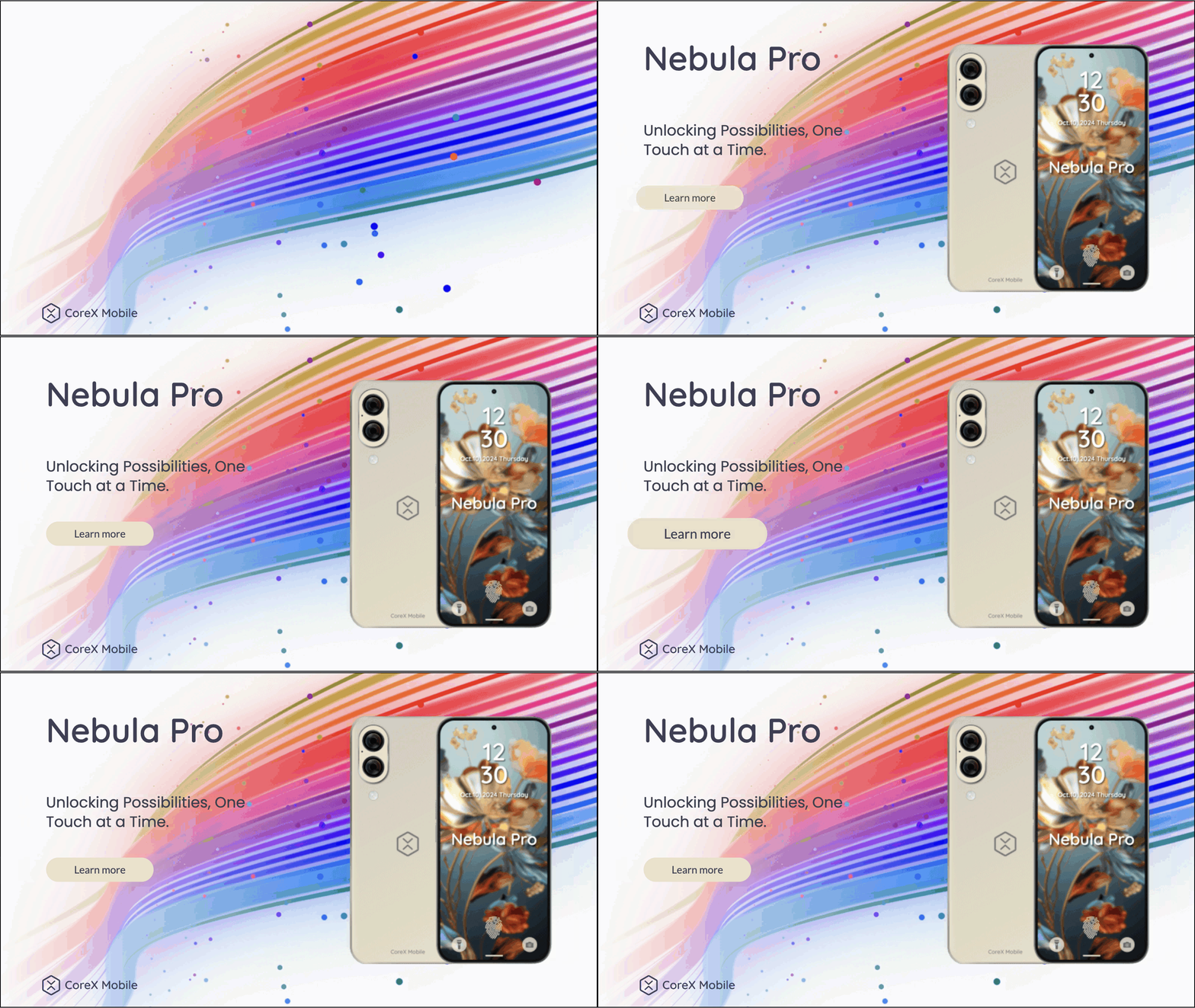
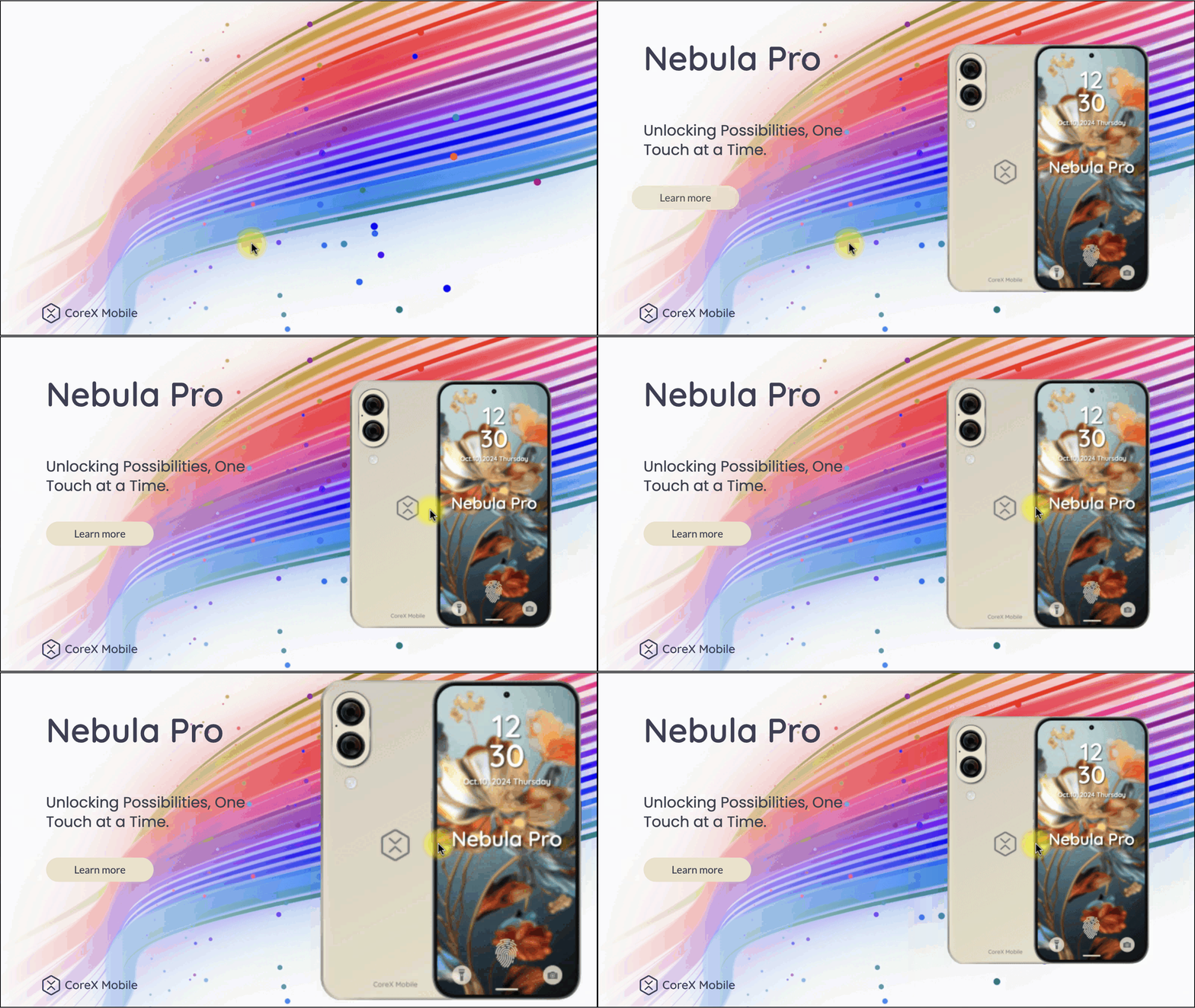
> For the complete documentation index, see [llms.txt](https://docs.responsiveads.com/llms.txt). Markdown versions of documentation pages are available by appending `.md` to page URLs; this page is available as [Markdown](https://docs.responsiveads.com/creating-ads/designing-your-ad-in-the-fluid-ad-creator/animation-timeline/animation-scenes.md).
# Animation Scenes
Animation Scenes let you break your animation into multiple independent timelines that can be played, looped, or triggered separately. This makes it easier to manage complex animations and create more interactive, event-driven ad experiences.
This guide explains **when Animation Scenes are useful**, and **how to set them up and trigger them**.
***
## Overview
There is a new way to structure your ad animations: **create multiple isolated animations (Scenes) and control when and how each one plays**.
Each Animation Scene is a separate timeline that can:
* Autoplay on ad load
* Loop independently
* Be triggered by user interaction
* Start, pause, or restart other Scenes
This allows you to build richer experiences while keeping each animation easy to manage.
***
## When to Use Animation Scenes
Below are a few common scenarios where Animation Scenes shine.
### Case #1 — Looping a CTA Animation
Use Animation Scenes to separate your main intro animation from a looping call-to-action.\
This keeps your CTA animation running without restarting the entire ad animation.
Example setup:
* Scene 1: Intro animation
* Autoplays on ad load
* Scene 2: CTA animation
* Loops continuously
### Case #2 — Trigger Animations on click
Use Scenes to add interactive animations triggered by user actions.\
This approach is ideal for creating engaging, responsive effects without overloading a single timeline.
Example setup:
* Scene 1: Intro animation
* Autoplays on ad load
* Scene 2: Interactive animation
* Triggered when an image is clicked
***
## How Animation Scenes Work
### What Is an Animation Scene?
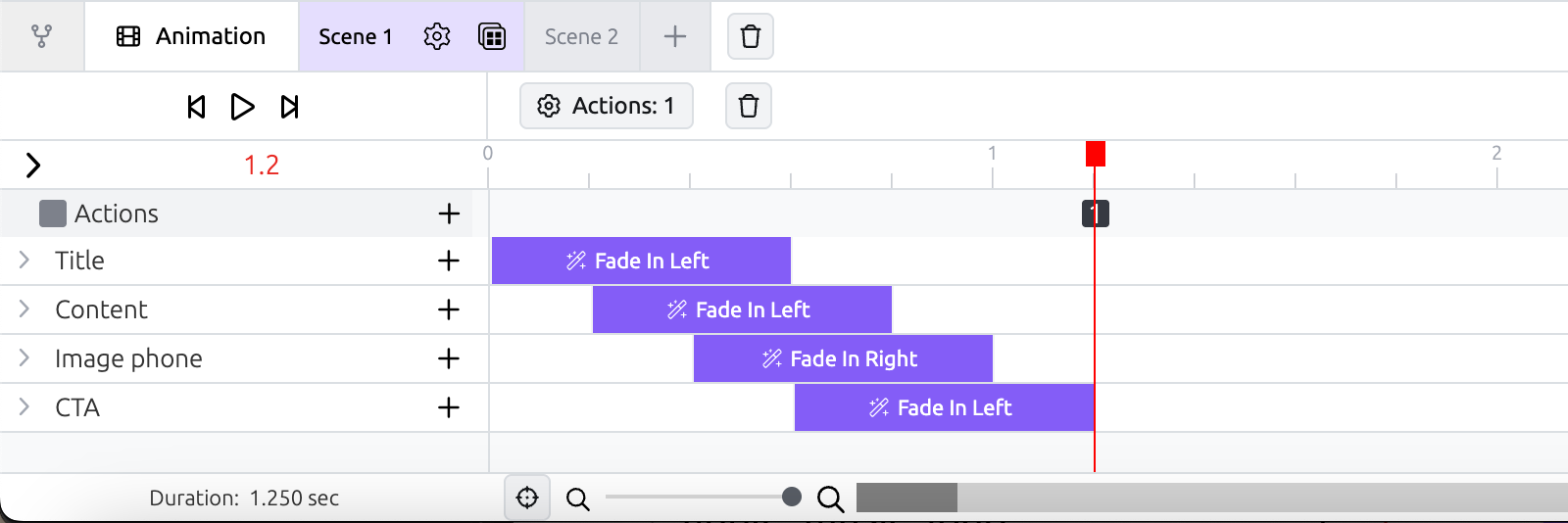
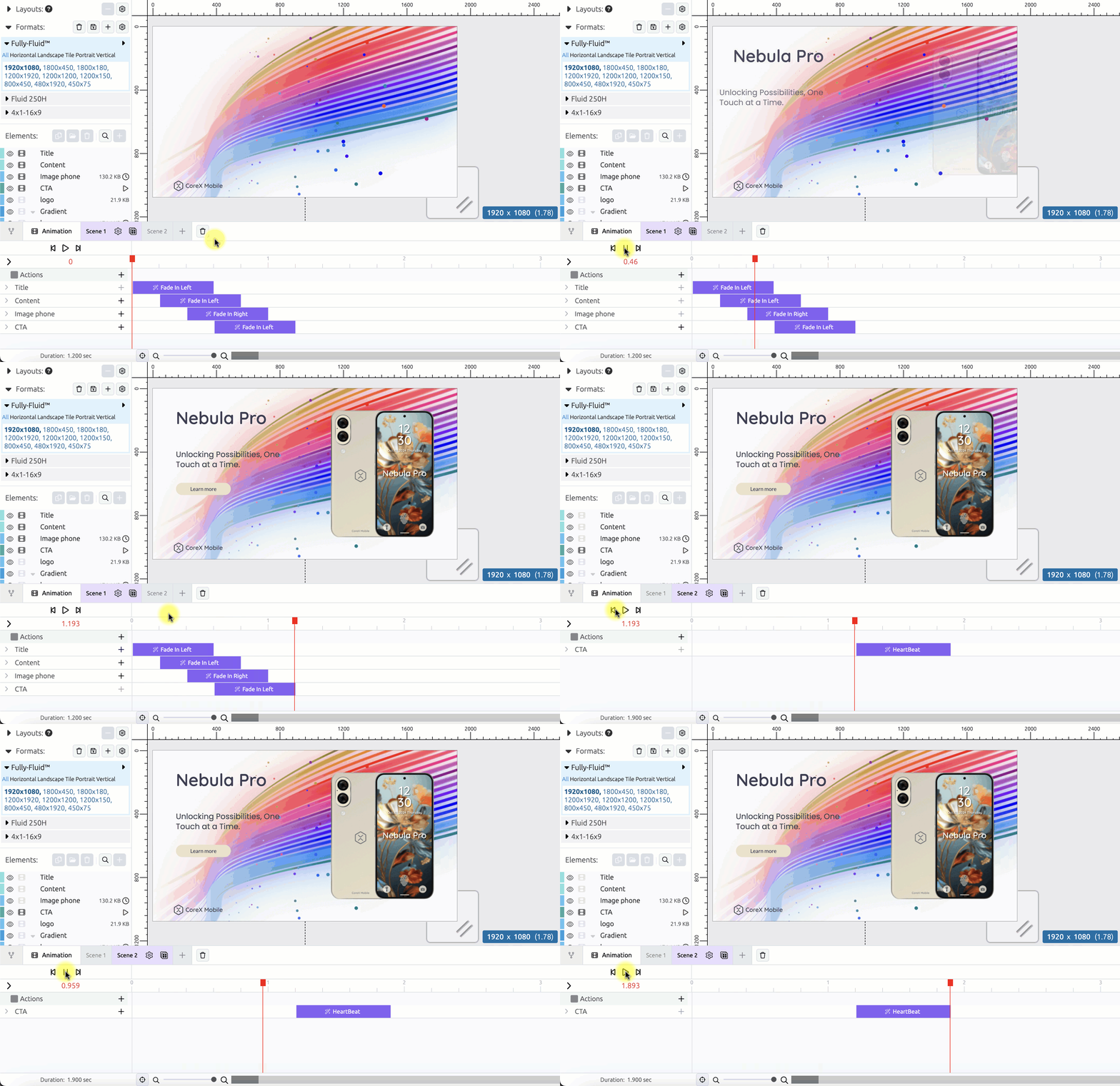
An Animation Scene is a **separate Animation Timeline** that contains its own animation blocks, groups, and settings.
This means that when your creative has only one scene, it is built in the same way as with the previous Animation Timeline. If you don’t need additional scenes, you don’t need to change your workflow.
Scenes can:
* Play asynchronously (in parallel or sequentially)
* Be triggered at different times
* Use different playback rules (autoplay, loop, pause, etc.)
{% hint style="info" %}
💡 Think of each Scene as a self-contained animation that you can control independently.
{% endhint %}
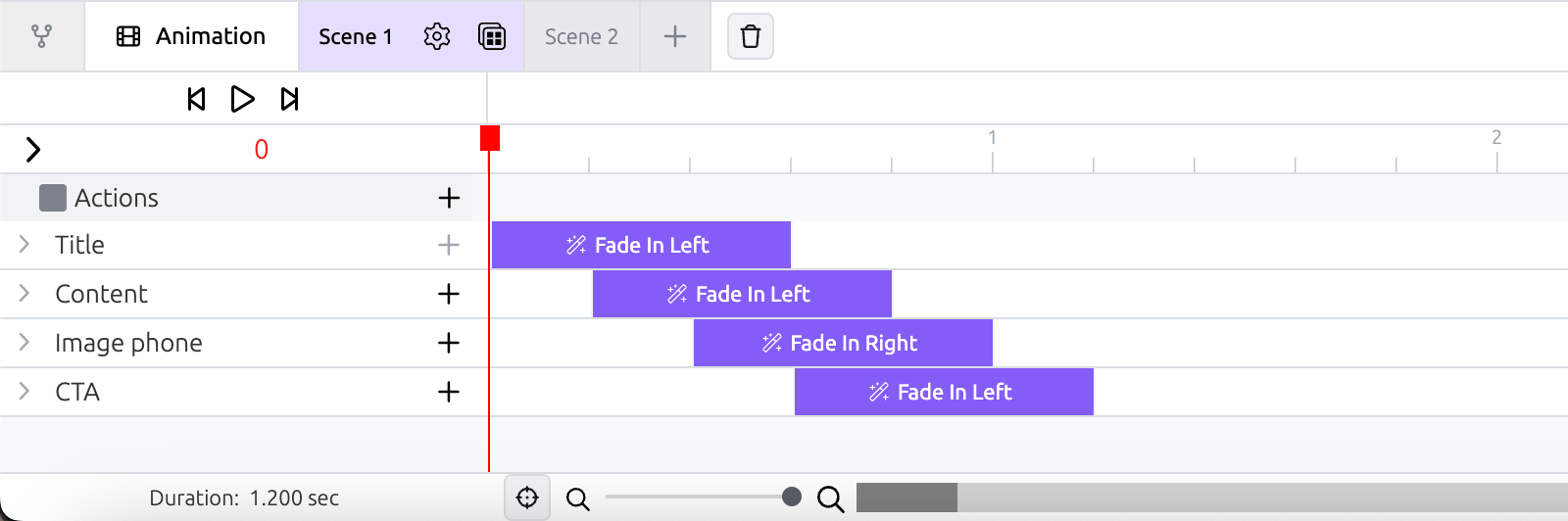
Scene 1 example
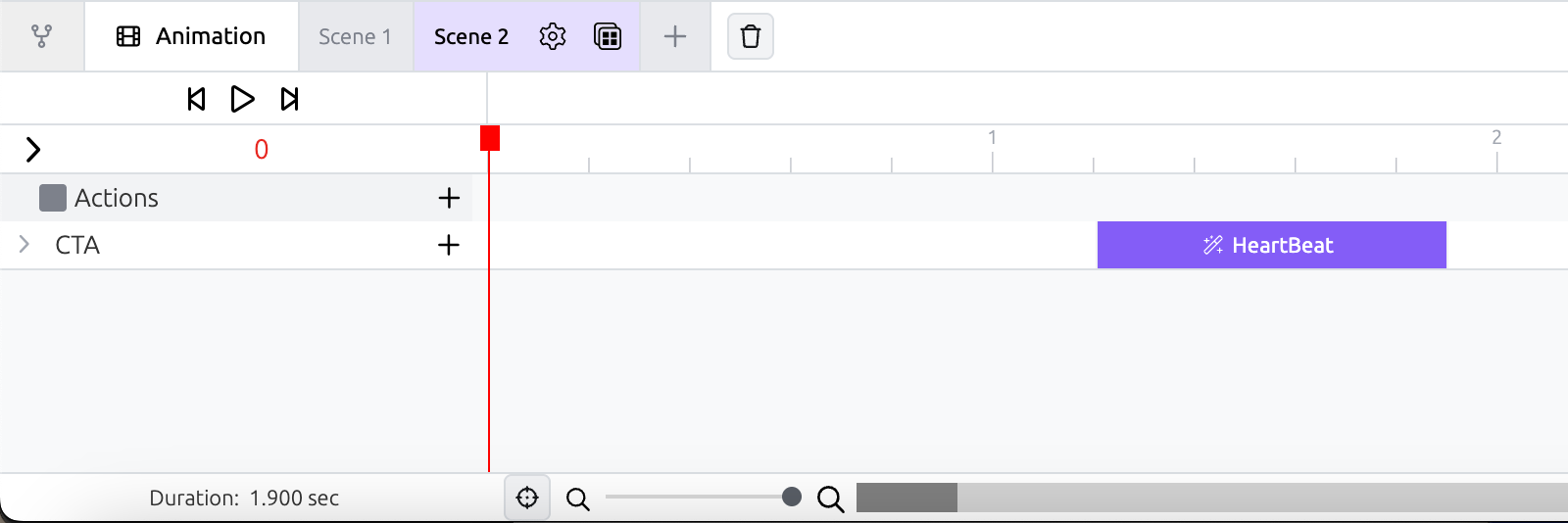
Scene 2 example
### Default Scene Behaviour
* Every creative starts with Scene 1 by default.
* Scene 1 can be your only Scene for a simple animation.
* By default, Scene 1 is set to Autoplay.
* Additional Scenes are not set to Autoplay by default.
To learn how to create animations *inside* a Scene, refer to the [Animation Timeline guide](/creating-ads/designing-your-ad-in-the-fluid-ad-creator/animation-timeline.md).
### Basic Scene Actions
You manage Animation Scenes using the Scene tabs above the timeline.
#### Adding a Scene
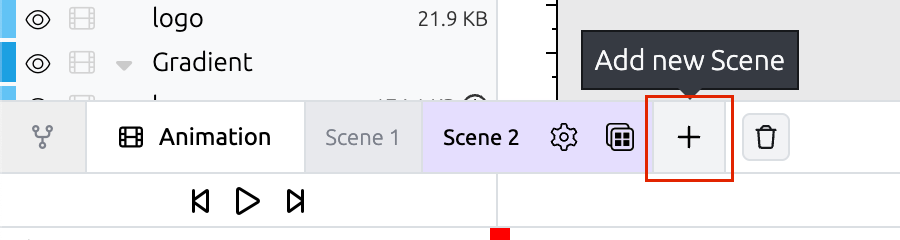
* Click the “**+**” button next to the Scene tabs.
* New Scenes are named automatically: Scene 2, Scene 3, etc.
Adding a Scene
#### Deleting a Scene
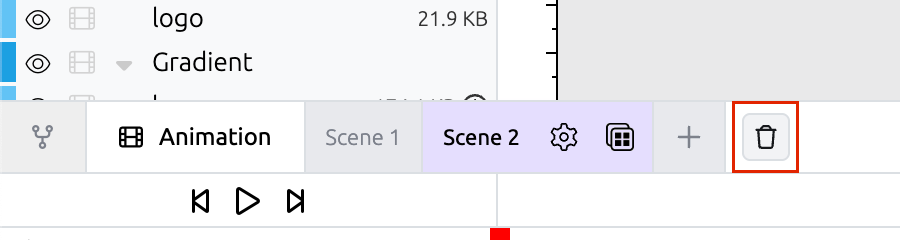
* Click the **bin icon** next to the Scene tab.
* Confirm deletion.
{% hint style="warning" %}
Note: Deleting a Scene permanently removes all animation content inside it.
{% endhint %}
Deleting a Scene
#### Rename a Scene
* Click the Scene name
* Enter a more descriptive name for your scene
#### Copy Scene Animation from Size to Size
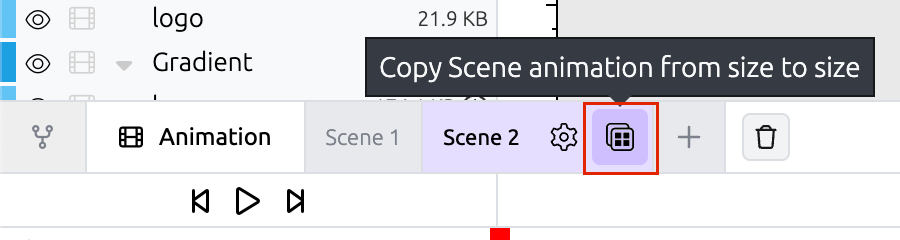
* Click the **copy icon** next to the Scene tabs.
* Copies animations within the selected Scene only to other sizes.
Copy Scene Animation from Size to Size
***
## Scene Settings
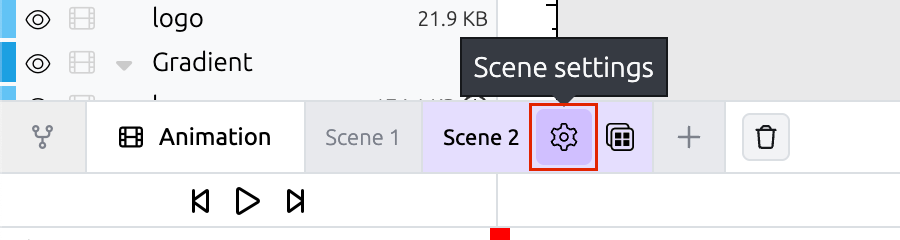
Each Scene has its own playback settings.
Scene Settings button
### Default Settings
* Scene 1: Autoplay enabled
* All other Scenes: Autoplay **dis**abled
### Available Scene Options
* **Autoplay** — plays the Scene automatically on ad load.
* **Enable restart on scroll into view** — the animation will restart every time the viewer scrolls the page and the ad comes back into view.
* **Loop** — allows you to keep restarting your Animation Scene for as many times as you define or infinitely.
* **Pause** — Add a Pause between each loop.
* **Parallax scroll animation** — connects animation playback to the viewer’s scroll position: the animation progresses as the viewer scrolls the page.
* From the drop-down menus select when you want your parallax to start and end.
Scene Settings menu
***
## Triggering Animation Scenes
Scenes can be triggered in multiple ways, giving you fine-grained control over playback.
### 1. Autoplay on Ad Load
* Enabled by default on the first scene in the Scene settings.
* Multiple Scenes can be set to Autoplay if needed.
* A little play icon next to the scene name indicates that the scene is set to autoplay
Scene Settings: Autoplay enabled
### 2. Triggering Scenes from Element Click Actions
You can trigger Scenes using element interactions.
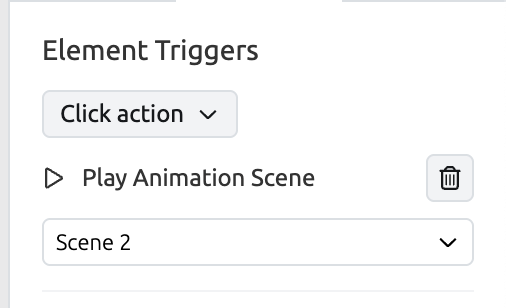
**Setup steps:**
1. Select an element.
2. Open the **Setup** tab.
3. Choose a **Click trigger**.
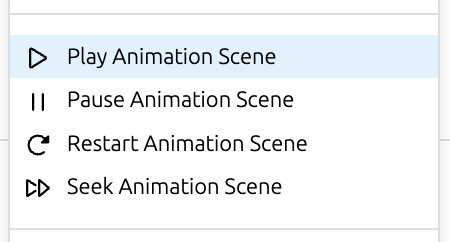
4. Select one of the following actions:
5. Choose the Scene you want to control.
### 3. Triggering Scenes from Other Scenes (Timed Actions)
Scenes can also trigger other Scenes at specific times.
**Example**:
* Play Scene 2 halfway through Scene 1
* Start multiple Scenes in parallel
* Chain Scenes one after another
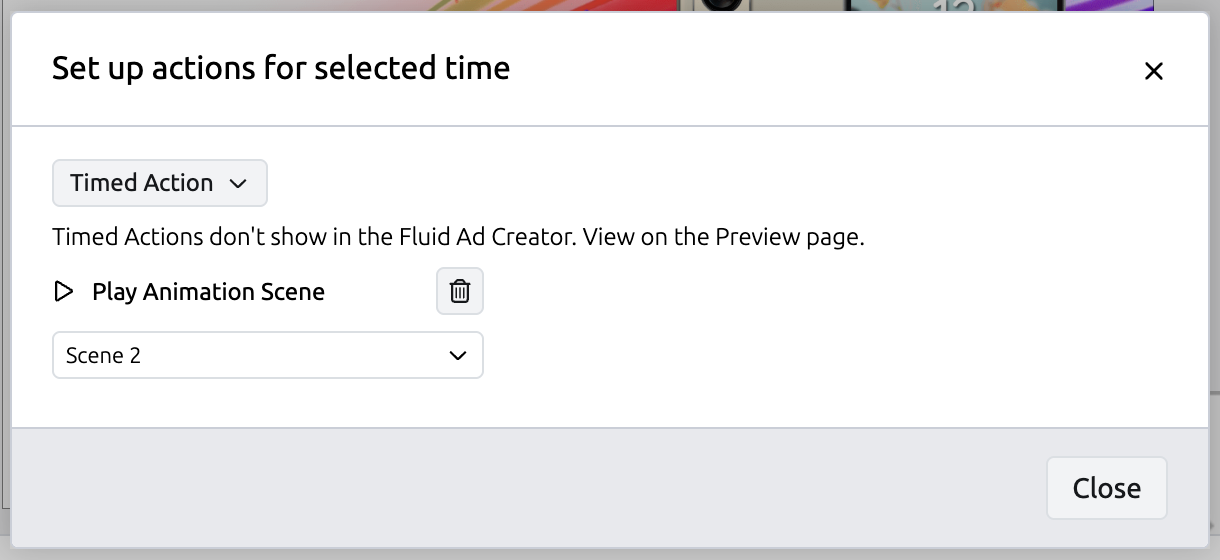
**Setup steps:**
1. Open the Scene that will trigger another Scene.
2. Move the playhead to the desired time.
3. Add a new Action.
4. In the Action settings pop-up, select one of the following actions:
5. Choose the Scene you want to control.
New Timed Action created
Timed Actions Settings menu
***
## Previewing Animation Scenes
Preview behaviour depends on where you are working.
### In the Fluid Ad Creator (Animation Pane controls)
Select the Play button to start playing the selected scene from where the red playhead is positioned.
* You can only view and play **one selected Scene** at a time.
* This is true even if:
* A Scene is set to Autoplay
* A Scene is triggered by another Scene or element
* You cannot preview:
* Looping behaviour
* Element Click actions triggering another Scene
* Timed actions triggering another Scene
### On Preview Page
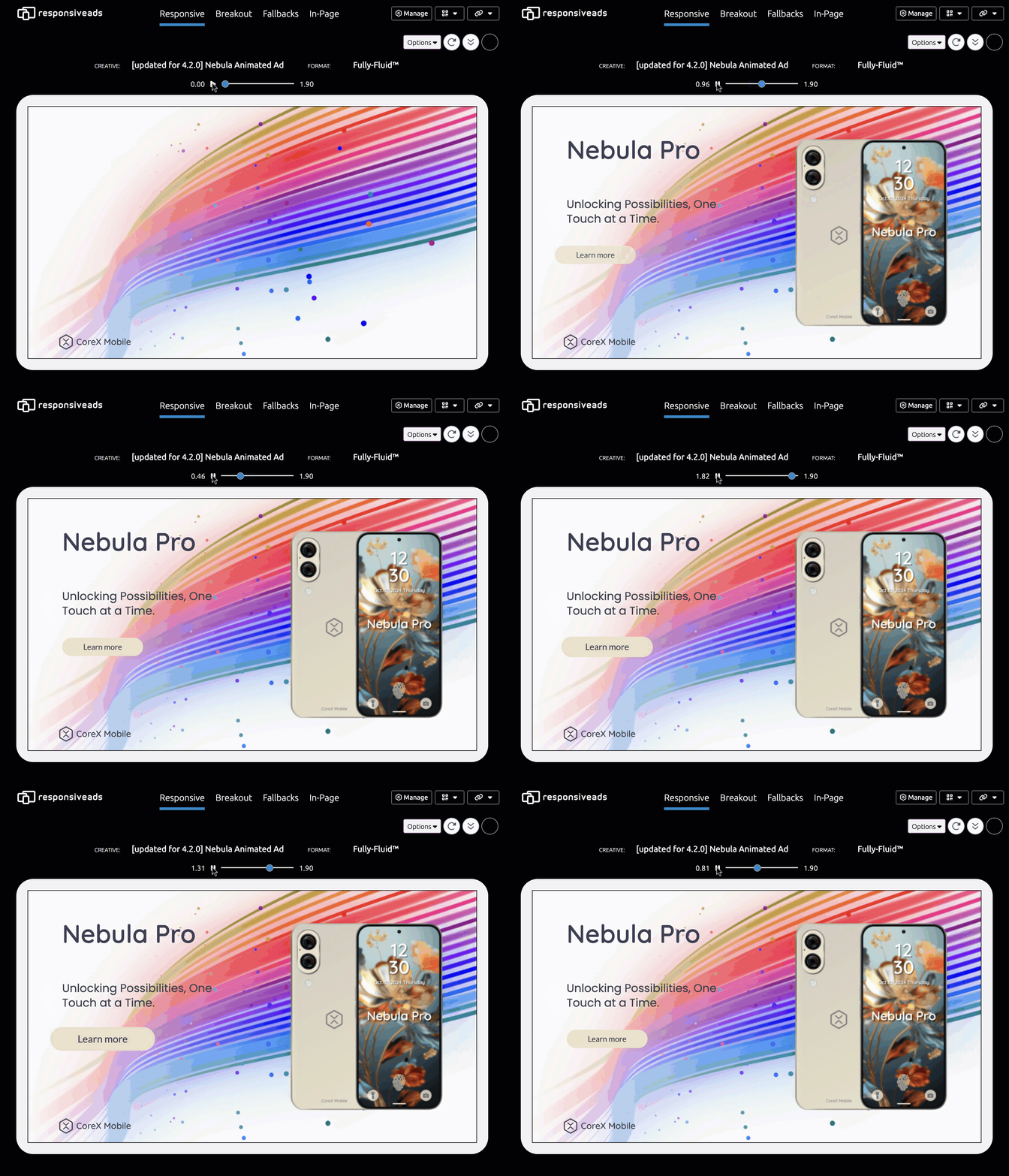
Click the Preview button in the top navigation bar to open the Preview page. When the page loads, any animations set to Autoplay will begin playing for the size that matches your browser window.
* To review **complex, multiple Scenes interactions** use the Preview Page.
* You can preview all Scenes regardless of a trigger and setup:
* Autoplay Scenes
* Looping Scenes
* Scenes triggered by timed actions and playing sequentially
* Scenes triggered by user interactions
***
## Migrating Animated Creatives from Studio 3
Animation Scenes are fully backward-compatible.
### Migration Behaviour
* Animation Timeline in Studio 3 creatives is migrated as **Scene 1**.
* Existing animations play as expected.
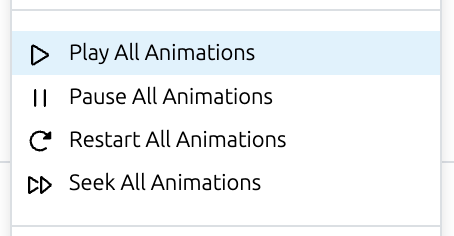
* Existing **Animation actions** continue to work and are mapped to the actions:
{% hint style="warning" %}
⚠️ **Important**: These actions now affect **all Animation Scenes**. If you add additional Scenes to your creative, triggering one of these actions will play, pause, restart, or seek **every Scene at once**.
{% endhint %}
{% hint style="info" %}
**Best practice**: If you plan to create multiple Scenes, **replace** old actions **with new actions**: Play / Pause / Restart / Rewind Animation Scene, and select the specific Scene you want to target.
{% endhint %}
### ON / OFF Animation Toggle Changes
Studio 4.2 no longer uses an ON / OFF animation toggle.
* When the **Animation pane is open**, you can create and edit animations.
* When the **Animation pane is closed**, you can adjust the ad design only — existing animations are not affected.
#### **Migrating Previously Created Animations**
* If animation was **ON** → **Scene 1** is set to **Autoplay**.
* If animation was **OFF in some sizes** → **Scene 1** is still set to **Autoplay**.
* If animation was **OFF in all sizes** → **Scene 1** is created with **Autoplay disabled**.
{% hint style="info" %}
**Tip**: Always use the Preview page with Breakout view to **review your migrated creative across all sizes** and confirm design and animation accuracy.
{% endhint %}